Discover NFC: Duilink in one tap

You can program your NFC tag yourself: on Android Chrome you can write directly from your page, or you can use the Duilink app on Android or an iPhone-compatible app such as NFC Tools.

NFC ideas for your brand

These are examples of branded supports you can create. Duilink does not lock you into accessories: you get the link, QR and files, then you can print or customize them wherever you prefer.
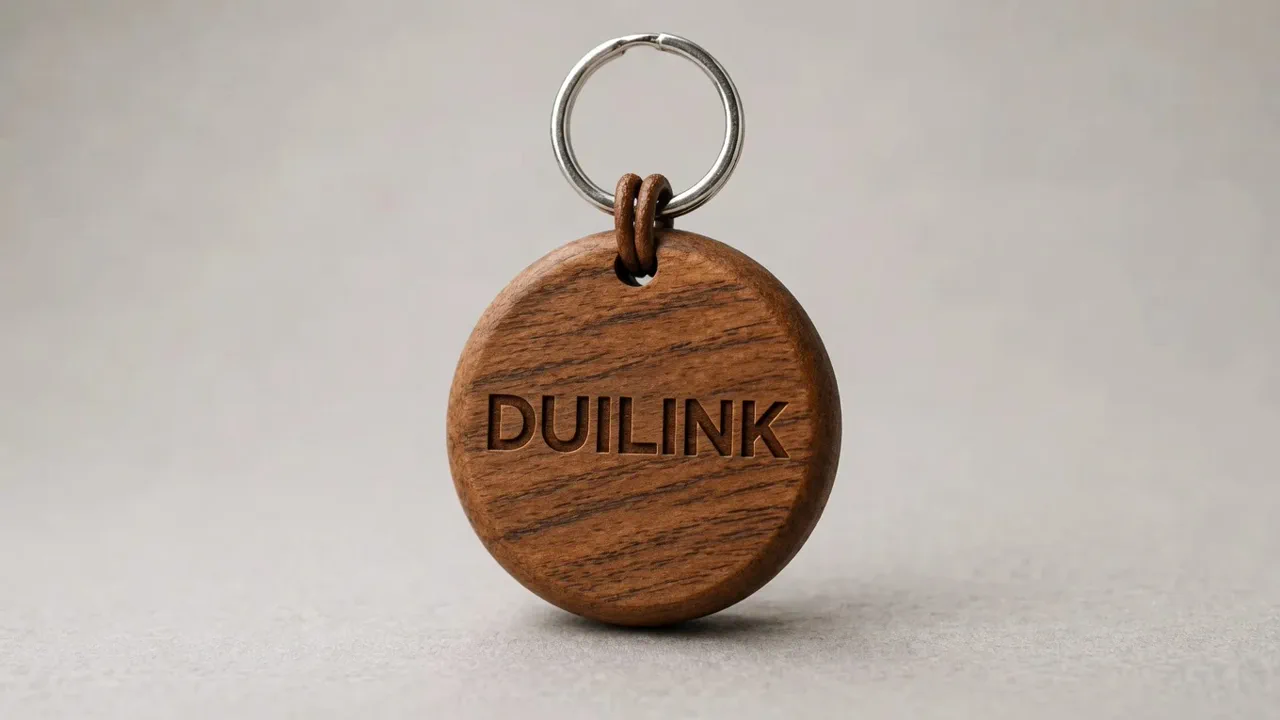
NFC ideas for your brand
  • keychains, rigid NFC cards, and bracelets
  • pens, pendants, charms, and promotional gadgets
  • calendars, notebooks, and stationery with integrated NFC tag
  • business cards with NFC stickers you can program from your Duilink page
  • link remains updateable from your Duilink area
  • instant opening on NFC-compatible phones

Which NFC tags to use

  • NTAG213: enough for a Duilink URL.
  • NTAG215 or NTAG216: compatible but not required; a smaller memory tag is enough for a Duilink URL.

Buy your tag wherever you prefer: search for "NTAG" on search engines. You can program it directly from your Duilink page when using compatible Android Chrome.

How to test

  • On iPhone, place the top edge of the phone near the tag.
  • On Android, try the center or upper back area; it depends on the model.

Where to use it

  • keychain
  • badge or lanyard
  • reception desk
  • booth or trade show
  • printed business card

If it does not work

  • Check that NFC is enabled on Android.
  • For direct writing, use Android with an updated Chrome browser.
  • On iPhone/iPad, NFC writing from the browser is not supported: ask someone with compatible Android to write the tag, or use NFC Tools or another dedicated app.
  • Rewrite the tag as URL/URI, not plain text.
  • Verify the tag is not already locked.
  • Avoid metal surfaces if the tag is not anti-metal.